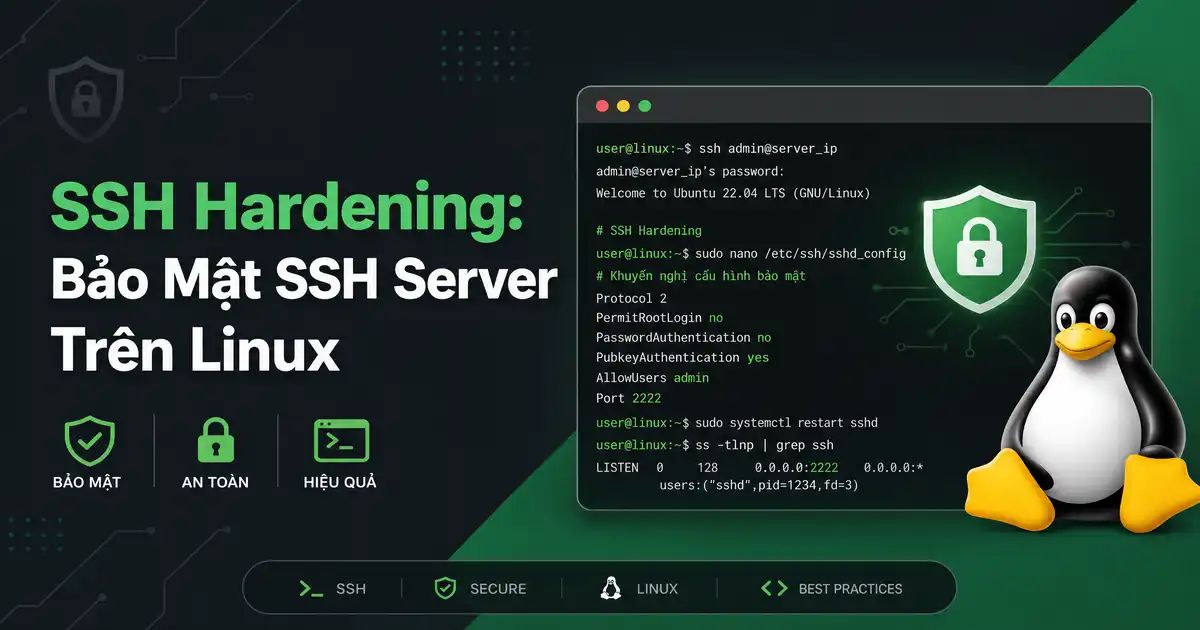
Nếu bạn vừa thuê một máy chủ ảo mới và để nguyên cổng dịch vụ mặc định mở ra internet, bạn có biết chỉ sau chưa đầy 15 phút, máy chủ của bạn đã bị hàng trăm con bot tự động từ khắp nơi trên thế giới dò quét cổng và thử đăng nhập mật khẩu liên tục?
Trong quản trị hệ thống Linux, giao thức Secure Shell (SSH) chính là cánh cửa dẫn thẳng vào trái tim của máy chủ. Để bảo vệ dữ liệu và ứng dụng của doanh nghiệp khỏi các đợt tấn công leo thang đặc quyền, việc thực hiện quy trình SSH Hardening chuẩn mực là bước đi sống còn đầu tiên mà bất kỳ kỹ sư hệ thống nào cũng phải hoàn thành ngay khi dựng server.
Thực tế thì cấu hình mặc định của OpenSSH trên hầu hết các bản phân phối Linux như Ubuntu, Debian hay Rocky Linux được tối ưu cho sự tiện lợi khi tiếp cận ban đầu chứ không hề tối ưu cho an ninh mạng. Nếu bạn vừa chuyển đổi từ shared hosting lên máy chủ riêng, bạn có thể tham khảo thêm bài viết so sánh hosting và VPS máy chủ để hiểu rõ quyền hạn quản trị root. Trong bài viết chuyên sâu này, mình sẽ hướng dẫn chi tiết quy trình SSH Hardening toàn diện với 10 bước thực chiến giúp đóng chặt mọi ngóc ngách rủi ro của dịch vụ SSH.
1. Bản chất kỹ thuật: Bề mặt tấn công SSH và tại sao SSH Hardening là bắt buộc
Để triển khai SSH Hardening hiệu quả, trước hết chúng ta cần hiểu rõ các phương thức mà kẻ tấn công thường sử dụng để thâm nhập qua giao thức SSH. Theo phân tích từ bách khoa toàn thư Wikipedia về giao thức Secure Shell, SSH là giao thức mạng mật mã dùng để vận hành các dịch vụ mạng một cách an toàn qua mạng không bảo mật. Tuy nhiên, tính an toàn của giao thức chỉ phát huy tác dụng khi các chính sách xác thực và quản lý khóa được thiết lập đúng đắn.
Một máy chủ Linux khi chưa trải qua quy trình SSH Hardening thường để lộ 3 điểm yếu chí mạng:
- Mở sẵn cổng mặc định 22: Toàn bộ các công cụ quét mạng tự động (network scanners) như Shodan, Masscan hay Censys liên tục lùng sục cổng 22 trên toàn dải địa chỉ IPv4 toàn cầu để tìm kiếm các dịch vụ SSH mở.
- Cho phép đăng nhập trực tiếp tài khoản root: Tài khoản root luôn có sẵn trên mọi hệ thống Linux. Attacker chỉ cần dò tìm mật khẩu mà không cần mất công đoán tên người dùng (username).
- Cho phép xác thực mật khẩu truyền thống (Password Authentication): Mật khẩu dù phức tạp đến đâu cũng có nguy cơ bị lộ do tấn công Brute-Force, tấn công từ điển (Dictionary Attack) hoặc lộ lọt thông tin từ các thiết bị quản trị bị nhiễm phần mềm gián điệp.
Tài liệu an ninh mạng của Viện Tiêu chuẩn và Công nghệ Hoa Kỳ trong tiêu chuẩn bảo mật máy chủ NIST SP 800-123 nhấn mạnh rằng việc kiểm soát truy cập từ xa thông qua SSH Hardening là tuyến phòng thủ then chốt để ngăn ngừa rò rỉ dữ liệu máy chủ. Kết hợp các biện pháp này cùng việc tuân thủ tiêu chuẩn Docker Security Best Practices sẽ giúp hạ tầng máy chủ của bạn đạt được khả năng phòng ngự chiều sâu tối đa.
2. 10 Bước trong quy trình SSH Hardening chuẩn cho máy chủ Linux
Để giúp bạn có cái nhìn tổng quan và hệ thống hóa các biện pháp kỹ thuật, bảng dưới đây tóm tắt 10 bước triển khai SSH Hardening then chốt từ cấp độ mạng đến tầng ứng dụng OpenSSH:
| Bước | Biện pháp kỹ thuật | Mục tiêu bảo vệ an ninh | Hiệu quả giảm thiểu rủi ro |
|---|---|---|---|
| 1 | Tạo User thường có quyền Sudo | Tránh thao tác trực tiếp với tài khoản root | Giảm thiểu sai sót vận hành và leo thang quyền |
| 2 | Sử dụng SSH Key Ed25519 | Thay thế mật khẩu bằng mật mã đường cong elip | Triệt tiêu 100% rủi ro tấn công dò mật khẩu |
| 3 | Tắt đăng nhập Root (PermitRootLogin no) | Vô hiệu hóa mục tiêu tấn công mặc định | Ngăn chặn attacker đăng nhập thẳng quyền cao nhất |
| 4 | Vô hiệu hóa Password Authentication | Bắt buộc 100% người dùng xác thực bằng Key | Loại bỏ hoàn toàn tấn công Brute-Force mật khẩu |
| 5 | Thay đổi cổng lắng nghe mặc định | Đổi cổng 22 sang một cổng ngẫu nhiên cao | Loại bỏ hơn 95% lượng bot quét mạng tự động |
| 6 | Giới hạn người dùng được phép SSH | Chỉ cấp quyền cho một nhóm (AllowGroups) | Ngăn ngừa các tài khoản hệ thống bị lợi dụng |
| 7 | Cấu hình thời gian chờ nhàn rỗi (Idle Timeout) | Tự động ngắt phiên khi không thao tác | Chống chiếm quyền điều khiển phiên bỏ quên |
| 8 | Giới hạn số lần đăng nhập thất bại | Khống chế tham số MaxAuthTries | Làm chậm và vô hiệu hóa các công cụ dò quét |
| 9 | Cài đặt Fail2ban chống Brute-Force | Tự động chặn IP vi phạm bằng Firewall | Khóa cứng các địa chỉ IP có hành vi tấn công |
| 10 | Kích hoạt xác thực 2 lớp (2FA/MFA) | Bổ sung mã OTP từ Google Authenticator | Bảo vệ hệ thống ngay cả khi SSH Key bị đánh cắp |
Hãy cùng đi sâu vào hướng dẫn triển khai từng bước chi tiết trong bộ quy tắc SSH Hardening dưới đây.
3. Chuyển đổi sang xác thực SSH Key hiện đại với thuật toán Ed25519 trong SSH Hardening
Trong kế hoạch nâng cao bảo mật ssh linux, bước nền tảng đầu tiên trong chiến lược bảo mật ssh linux là chuyển đổi toàn bộ cơ chế đăng nhập từ mật khẩu truyền thống sang xác thực ssh key. Khóa SSH dựa trên mật mã bất đối xứng gồm một cặp Public Key (đặt trên máy chủ) và Private Key (lưu giữ cẩn mật trên máy cá nhân).
Tại sao nên ưu tiên thuật toán Ed25519 thay vì RSA?
Trong suốt nhiều năm, RSA 2048-bit hoặc 4096-bit là tiêu chuẩn phổ biến nhất. Tuy nhiên, trong các tiêu chuẩn SSH Hardening hiện đại, thuật toán Ed25519 (dựa trên đường cong Elliptic Curve Curve25519) mới là sự lựa chọn số một. Ed25519 mang lại độ an toàn mật mã tương đương với RSA 3072-bit nhưng kích thước khóa chỉ vỏn vẹn 68 ký tự, cho tốc độ tạo khóa và xác thực nhanh hơn gấp nhiều lần, đồng thời miễn nhiễm với các kỹ thuật tấn công Timing Attack.
Để khởi tạo một cặp khóa Ed25519 chuẩn mực trên máy tính cá nhân của bạn, hãy thực thi câu lệnh sau:
# Tạo khóa SSH với thuật toán Ed25519 và số vòng lặp KDF cao (100 rounds)
ssh-keygen -t ed25519 -a 100 -C "cypher@vnhte.com"

# Copy Public Key lên máy chủ đích an toàn
ssh-copy-id -i ~/.ssh/id_ed25519.pub cypher@192.168.1.100
Tham số -a 100 trong lệnh trên chỉ thị cho OpenSSH sử dụng thuật toán phái sinh khóa bcrypt KDF với 100 vòng lặp, khiến việc giải mã mật khẩu bảo vệ (passphrase) của Private Key bằng phương pháp Brute-Force ngoại tuyến trở nên bất khả thi trong quy trình SSH Hardening.
4. Tối ưu hóa tệp cấu hình sshd_config theo tiêu chuẩn SSH Hardening
Toàn bộ linh hồn của dịch vụ SSH trên máy chủ Linux nằm tại tệp tin /etc/ssh/sshd_config. Để tiến hành cấu hình sshd_config đạt chuẩn an ninh cao nhất, bạn cần chỉnh sửa và bổ sung các chỉ thị kỹ thuật quan trọng nhằm loại bỏ các giao thức cũ kỹ và tắt các tính năng thừa thãi.
Cấu hình sshd_config chuẩn sản xuất (Production-Ready)
Trước khi chỉnh sửa theo hướng dẫn SSH Hardening, hãy luôn sao lưu tệp cấu hình gốc để đề phòng sự cố. Dưới đây là bộ cấu hình mẫu chuẩn SSH Hardening được áp dụng cho môi trường doanh nghiệp:
# Sao lưu tệp cấu hình gốc trước khi thực hiện SSH Hardening
sudo cp /etc/ssh/sshd_config /etc/ssh/sshd_config.bak

# Các tham số tối ưu trong tệp /etc/ssh/sshd_config:
# 1. Cổng lắng nghe mới thay thế cổng 22
Port 2222

# 2. Bắt buộc sử dụng giao thức SSH Protocol 2
# (Hầu hết OpenSSH hiện đại đã mặc định, nhưng nên khai báo tường minh)

# 3. Vô hiệu hóa hoàn toàn quyền đăng nhập của root
PermitRootLogin no

# 4. Vô hiệu hóa đăng nhập bằng mật khẩu thường
PasswordAuthentication no
PermitEmptyPasswords no
ChallengeResponseAuthentication no

# 5. Bật xác thực bằng Public Key
PubkeyAuthentication yes

# 6. Giới hạn danh sách người dùng được phép kết nối
AllowUsers cypher sysadmin

# 7. Giới hạn số lần thử xác thực sai tối đa
MaxAuthTries 3

# 8. Cấu hình tự động ngắt kết nối nhàn rỗi sau 5 phút
ClientAliveInterval 300
ClientAliveCountMax 2

# 9. Tắt các tính năng chuyển tiếp nguy hiểm nếu không dùng
X11Forwarding no
AllowTcpForwarding no
AllowAgentForwarding no

# 10. Tắt xác thực dựa trên host và tệp rhosts
HostbasedAuthentication no
IgnoreRhosts yes
Các chỉ thị trên là cốt lõi của SSH Hardening: việc đặt PermitRootLogin no buộc mọi quản trị viên phải đăng nhập bằng tài khoản cá nhân có định danh rõ ràng trước khi nâng quyền qua sudo, tạo ra chuỗi kiểm toán vết (audit trail) minh bạch trong nhật ký hệ thống.
Thắt chặt các thuật toán mật mã (Ciphers, MACs, KexAlgorithms)
Theo tài liệu của tài liệu hướng dẫn OpenSSH chính thức, OpenSSH hỗ trợ rất nhiều thuật toán để tương thích với các máy khách cũ. Tuy nhiên, nhiều thuật toán cũ như DSA, 3DES hay SHA-1 đã bị phát hiện có điểm yếu bảo mật. Trong quy trình SSH Hardening nâng cao, chúng ta nên giới hạn OpenSSH chỉ sử dụng các bộ thuật toán mã hóa mạnh nhất hiện nay:
# Khai báo các thuật toán mật mã mạnh trong /etc/ssh/sshd_config:
KexAlgorithms curve25519-sha256,curve25519-sha256@libssh.org,diffie-hellman-group16-sha512,diffie-hellman-group18-sha512

Ciphers chacha20-poly1305@openssh.com,aes256-gcm@openssh.com,aes128-gcm@openssh.com

MACs hmac-sha2-512-etm@openssh.com,hmac-sha2-256-etm@openssh.com
Việc ép buộc các bộ mã hóa hiện đại trong SSH Hardening giúp ngăn ngừa triệt để các cuộc tấn công giải mã dữ liệu thụ động hoặc tấn công can thiệp trên đường truyền (Man-in-the-Middle).
5. Đổi cổng kết nối mặc định và giới hạn IP trong SSH Hardening
Một trong những tranh luận kinh điển trong cộng đồng bảo mật là: “Đổi cổng SSH có thực sự an toàn hay chỉ là Security through Obscurity?”. Câu trả lời thực tế từ kinh nghiệm của mình: Đổi cổng không thể ngăn được một hacker có chủ đích quét toàn bộ 65535 cổng của máy chủ, nhưng nó giúp triệt tiêu đến 98% các đợt rà quét tự động từ các mạng botnet ngẫu nhiên.
Cấu hình tường lửa UFW để cô lập dịch vụ SSH
Sau khi áp dụng quy tắc SSH Hardening đổi cổng SSH sang 2222 (hoặc bất kỳ cổng ngẫu nhiên nào trên dải 1024-65535), bạn bắt buộc phải mở cổng mới trên tường lửa UFW (Uncomplicated Firewall) trước khi khởi động lại dịch vụ SSH. Giải pháp SSH Hardening tốt nhất là chỉ cho phép kết nối SSH đến từ các địa chỉ IP tĩnh cố định (như IP văn phòng hoặc IP VPN riêng):
# Nếu cho phép truy cập từ mọi nơi trên cổng mới 2222:
sudo ufw allow 2222/tcp comment "Custom SSH Port"

# Giải pháp bảo mật tối đa: Chỉ cho phép IP tĩnh cụ thể truy cập SSH
sudo ufw allow from 203.0.113.50 to any port 2222 proto tcp comment "Admin Static IP"

# Xóa bỏ luật mở cổng 22 cũ
sudo ufw delete allow 22/tcp

# Bật tường lửa UFW
sudo ufw enable
sudo ufw status verbose
Nếu hệ thống của bạn đứng sau các hạ tầng định tuyến phức tạp, bạn có thể tham khảo thêm các mô hình quản lý mạng qua bài viết về kiến trúc Load Balancer Nginx API Gateway và cách bảo vệ đường truyền qua bài viết về thiết lập Proxy bảo vệ kết nối mạng.
6. Thiết lập lá chắn chống brute force ssh với Fail2ban trong SSH Hardening
Ngay cả khi bạn đã áp dụng khóa SSH Key và đổi cổng kết nối, các cuộc tấn công rà quét liên tục vẫn có thể làm đầy tệp nhật ký (log flooding) và gây tiêu tốn tài nguyên CPU xử lý kết nối. Đây là lúc giải pháp chống brute force ssh lừng danh với Fail2ban trở thành vũ khí chống brute force ssh đắc lực phát huy vai trò của mình trong quy trình SSH Hardening.
Cách Fail2ban nhận diện và trừng phạt IP tấn công
Fail2ban hoạt động bằng cách liên tục giám sát tệp nhật ký xác thực của hệ thống (/var/log/auth.log trên Debian/Ubuntu hoặc /var/log/secure trên RHEL/CentOS). Khi một địa chỉ IP có số lần đăng nhập thất bại vượt quá ngưỡng quy định trong một khoảng thời gian xác định, Fail2ban sẽ tự động thêm một quy tắc vào tường lửa (iptables/nftables) để chặn (ban) toàn bộ kết nối từ IP đó.
# Cài đặt Fail2ban trên Ubuntu / Debian
sudo apt update && sudo apt install fail2ban -y

# Tạo file cấu hình cục bộ để ghi đè (không sửa trực tiếp jail.conf)
sudo cp /etc/fail2ban/jail.conf /etc/fail2ban/jail.local

# Chỉnh sửa khối cấu hình [sshd] trong /etc/fail2ban/jail.local:
[sshd]
enabled = true
port = 2222
filter = sshd
logpath = /var/log/auth.log
maxretry = 3
findtime = 600
bantime = 86400
ignoreip = 127.0.0.1/8 ::1 203.0.113.50
Với cấu hình SSH Hardening ở trên, bất kỳ địa chỉ IP nào thử xác thực sai quá 3 lần trong vòng 10 phút (600 giây) sẽ ngay lập tức bị cách ly hoàn toàn khỏi máy chủ trong vòng 24 giờ (86400 giây). Cơ chế phòng vệ tự động này tương tự như việc áp dụng kỹ thuật Rate Limiting bảo vệ API ở tầng biên ứng dụng web.
7. Kích hoạt xác thực 2 lớp (2FA / MFA) trong quy trình SSH Hardening
Điều gì xảy ra nếu laptop của bạn bị mất trộm hoặc bị nhiễm mã độc đánh cắp Private Key? Để xây dựng một hệ sinh thái an ninh không thể xuyên thủng trong SSH Hardening, giải pháp tối thượng là kích hoạt xác thực hai lớp (Two-Factor Authentication) thông qua module PAM libpam-google-authenticator.
Khi bật 2FA, người dùng khi đăng nhập vào máy chủ bắt buộc phải cung cấp đồng thời hai yếu tố: chiếc chìa khóa số bạn sở hữu (SSH Key Ed25519) và một dãy số ngẫu nhiên 6 chữ số biến đổi theo thời gian (TOTP) sinh ra từ ứng dụng Google Authenticator trên điện thoại của bạn.
# Cài đặt module Google Authenticator PAM
sudo apt install libpam-google-authenticator -y

# Chạy trình hướng dẫn cấu hình tạo mã QR bí mật cho user
google-authenticator -t -d -f -r 3 -R 30 -W

# Cấu hình tệp /etc/pam.d/sshd, thêm dòng sau ở đầu tệp:
# auth required pam_google_authenticator.so

# Bật hỗ trợ xác thực tương tác trong /etc/ssh/sshd_config:
KbdInteractiveAuthentication yes
AuthenticationMethods publickey,keyboard-interactive
Chỉ thị AuthenticationMethods publickey,keyboard-interactive trong SSH Hardening đảm bảo tính kỷ luật sắt: máy chủ bắt buộc phải thỏa mãn cả hai phương thức xác thực liên tiếp thì mới mở cửa phiên làm việc cho quản trị viên.
8. Giám sát nhật ký đăng nhập và thiết lập cảnh báo trong SSH Hardening
Một chiến lược SSH Hardening hoàn chỉnh không chỉ dừng lại ở các biện pháp phòng ngừa mà còn đòi hỏi khả năng quan sát và cảnh báo khi có sự cố. Khi một phiên đăng nhập SSH thành công diễn ra, bạn cần biết chính xác ai vừa đăng nhập, vào thời gian nào và từ địa chỉ IP nào.
Bạn có thể dễ dàng tạo một đoạn script nhỏ đặt trong /etc/profile.d/ssh-telegram-alert.sh để tự động gửi thông báo tức thì đến kênh Telegram của đội ngũ kỹ thuật mỗi khi có ai đó mở phiên SSH:
#!/bin/bash
# Tự động gửi cảnh báo Telegram khi có phiên SSH mới đăng nhập
if [ -n "$SSH_CLIENT" ]; then
    CLIENT_IP=$(echo $SSH_CLIENT | awk '{print $1}')
    USER_NAME=$(whoami)
    HOST_NAME=$(hostname)
    LOGIN_TIME=$(date "+%Y-%m-%d %H:%M:%S")

    TEXT="CẢNH BÁO ĐĂNG NHẬP SSH!%0A- Máy chủ: ${HOST_NAME}%0A- Người dùng: ${USER_NAME}%0A- IP đăng nhập: ${CLIENT_IP}%0A- Thời gian: ${LOGIN_TIME}"
    BOT_TOKEN="YOUR_TELEGRAM_BOT_TOKEN"
    CHAT_ID="YOUR_TELEGRAM_CHAT_ID"

    curl -s -X POST "https://api.telegram.org/bot${BOT_TOKEN}/sendMessage" \
         -d "chat_id=${CHAT_ID}&text=${TEXT}" > /dev/null 2>&1
fi
Cơ chế thông báo chủ động này trong SSH Hardening giúp bạn phát hiện ngay lập tức các phiên đăng nhập bất thường ngoài giờ làm việc hoặc từ các dải IP lạ để kịp thời phong tỏa tài khoản.
9. Kinh nghiệm thực chiến từ Cypher: Nguyên tắc an toàn khi SSH Hardening
Trong quá trình làm việc với hàng trăm máy chủ Linux, mình đã chứng kiến không ít kỹ sư hệ thống tự tay “khóa chặt cửa” và nhốt chính mình ở bên ngoài máy chủ (Lockout) sau khi cấu hình sai cú pháp sshd_config hoặc chưa mở cổng firewall mà đã vội vàng khởi động lại dịch vụ SSH. Dưới đây là những nguyên tắc xương máu bạn bắt buộc phải ghi nhớ:
Nguyên tắc vàng của Cypher: Tuyệt đối KHÔNG BAO GIỜ đóng phiên SSH hiện tại sau khi chỉnh sửa sshd_config. Hãy mở một cửa sổ Terminal thứ hai để thử kết nối vào máy chủ trước. Chỉ khi phiên thứ hai đăng nhập thành công mượt mà, bạn mới được phép đóng phiên làm việc ban đầu.
Luôn kiểm tra tính hợp lệ của tệp cấu hình trước khi khởi động lại dịch vụ OpenSSH bằng cờ kiểm tra cú pháp (Test Mode):
# Kiểm tra tính đúng đắn của tệp cấu hình OpenSSH
sudo sshd -t

# Nếu lệnh trên không báo bất kỳ lỗi nào, an tâm reload dịch vụ:
sudo systemctl reload sshd
Nếu câu lệnh sudo sshd -t phát hiện lỗi cú pháp, nó sẽ chỉ rõ dòng bị sai để bạn sửa lại ngay trước khi reload, đảm bảo phiên làm việc hiện tại của bạn không bao giờ bị gián đoạn. Bạn cũng có thể tham khảo thêm mã nguồn dự án tại kho mã nguồn OpenSSH Portable trên GitHub để theo dõi các bản vá lỗi bảo mật mới nhất từ cộng đồng phát triển toàn cầu.
Tổng kết
Tóm lại, máy chủ Linux chỉ thực sự an toàn và vững chắc khi bạn chủ động thiết lập các rào chắn phòng thủ ngay từ cổng giao tiếp đầu tiên. Quy trình SSH Hardening không phải là một công việc phức tạp đòi hỏi phần mềm đắt tiền mà là một chuỗi các thói quen kỷ luật kỹ thuật: chuyển sang khóa Ed25519, tắt hoàn toàn đăng nhập root và xác thực mật khẩu, đổi cổng dịch vụ, áp dụng Fail2ban và kích hoạt xác thực hai lớp 2FA.
Việc đầu tư 30 phút để thực hiện SSH Hardening ngay từ ngày đầu tiên dựng máy chủ sẽ giúp bạn tiết kiệm vô số đêm mất ngủ vì các sự cố mã độc hay dữ liệu bị đánh cắp. Hãy biến SSH Hardening thành một quy trình chuẩn hóa (SOP) được tự động hóa bằng Ansible, Bash script hoặc Terraform trong toàn bộ hệ thống hạ tầng của bạn.
Hy vọng cẩm nang phân tích chuyên sâu về SSH Hardening này đã mang lại cho các bạn những kiến thức thực chiến giá trị để tự tin làm chủ và bảo vệ hạ tầng máy chủ của mình. Nếu có bất kỳ thắc mắc hay chia sẻ kinh nghiệm nào về bảo mật máy chủ, hãy để lại bình luận để chúng ta cùng nhau học hỏi nhé!






![So Sánh Webhook và API Chi Tiết: Webhook Là Gì? [2026]](https://vnhte.com/wp-content/uploads/2026/06/webhook_vs_api_banner_final-660x347.webp "So Sánh Webhook và API Chi Tiết: Webhook Là Gì? [2026] 13")
![Theo Dõi Thay Đổi File Trên Linux Với inotifywait [2026]](https://vnhte.com/wp-content/uploads/2026/06/Theo-Doi-Thay-Doi-File-Tren-Linux-Real-Time-Voi-inotifywait-660x347.webp "Theo Dõi Thay Đổi File Trên Linux Với inotifywait [2026] 14")